Getting Started
This guide walks you through your first session with Pulse: what admins see after the install, what an author sees in the editor, and where each person finds the pages that need them.
Prerequisites
Section titled “Prerequisites”- Pulse is installed on your site.
- You have a space with a few pages in it.
1. Admins: open Get started
Section titled “1. Admins: open Get started”Pulse needs no setup. As soon as it is installed, it starts reading your site and keeps going on its own. Confluence admins open Get started with Pulse from the Get started button Atlassian shows after the install, or later from Pulse in your site’s app management. It shows how far the first read is, and what your authors will see when they edit a page.
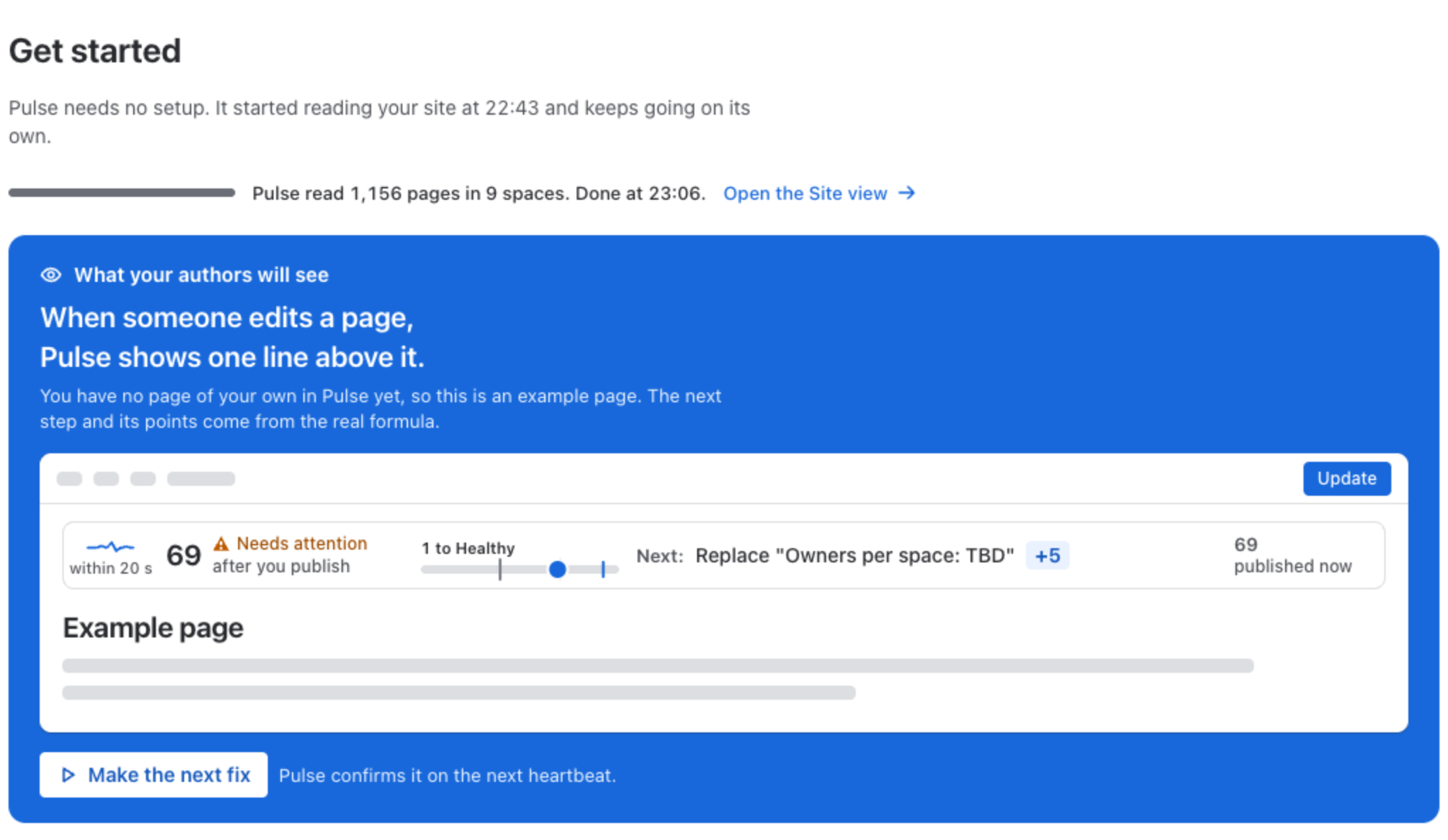
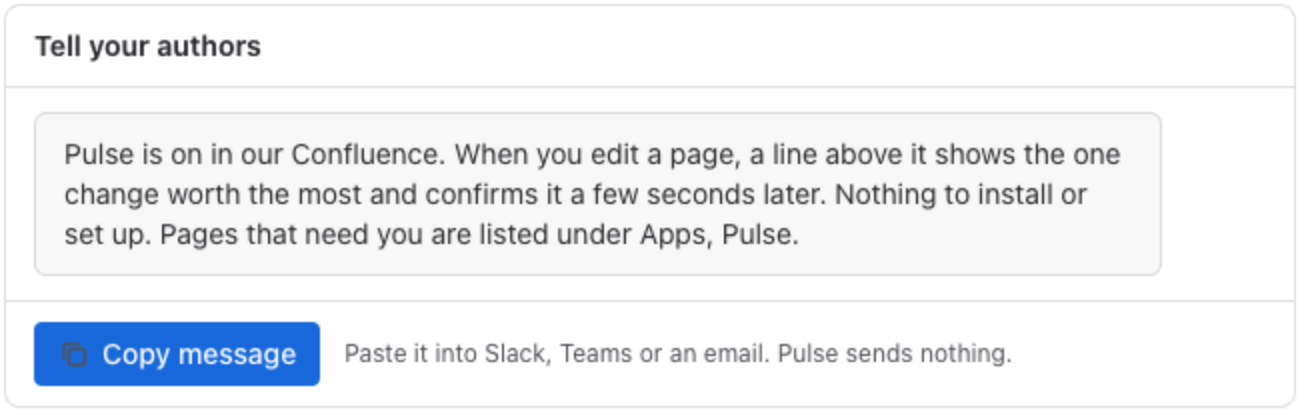
Make the next fix makes the step on the example page, and the line confirms it on its next heartbeat, as it will for your authors. Below, Tell your authors holds a short message you can copy into Slack, Teams or an email. Pulse sends nothing itself.
2. Edit a page
Section titled “2. Edit a page”Open any page and choose Edit. A line appears above the page:
- the score the page will have after you publish, and its band (Healthy from 70);
- how many points are missing to reach Healthy;
- the next step and what it is worth, for example Replace “TODO: add the driver link for the large format printer” for 5 points;
- on the left, a small heartbeat with the time of the next check of your draft.
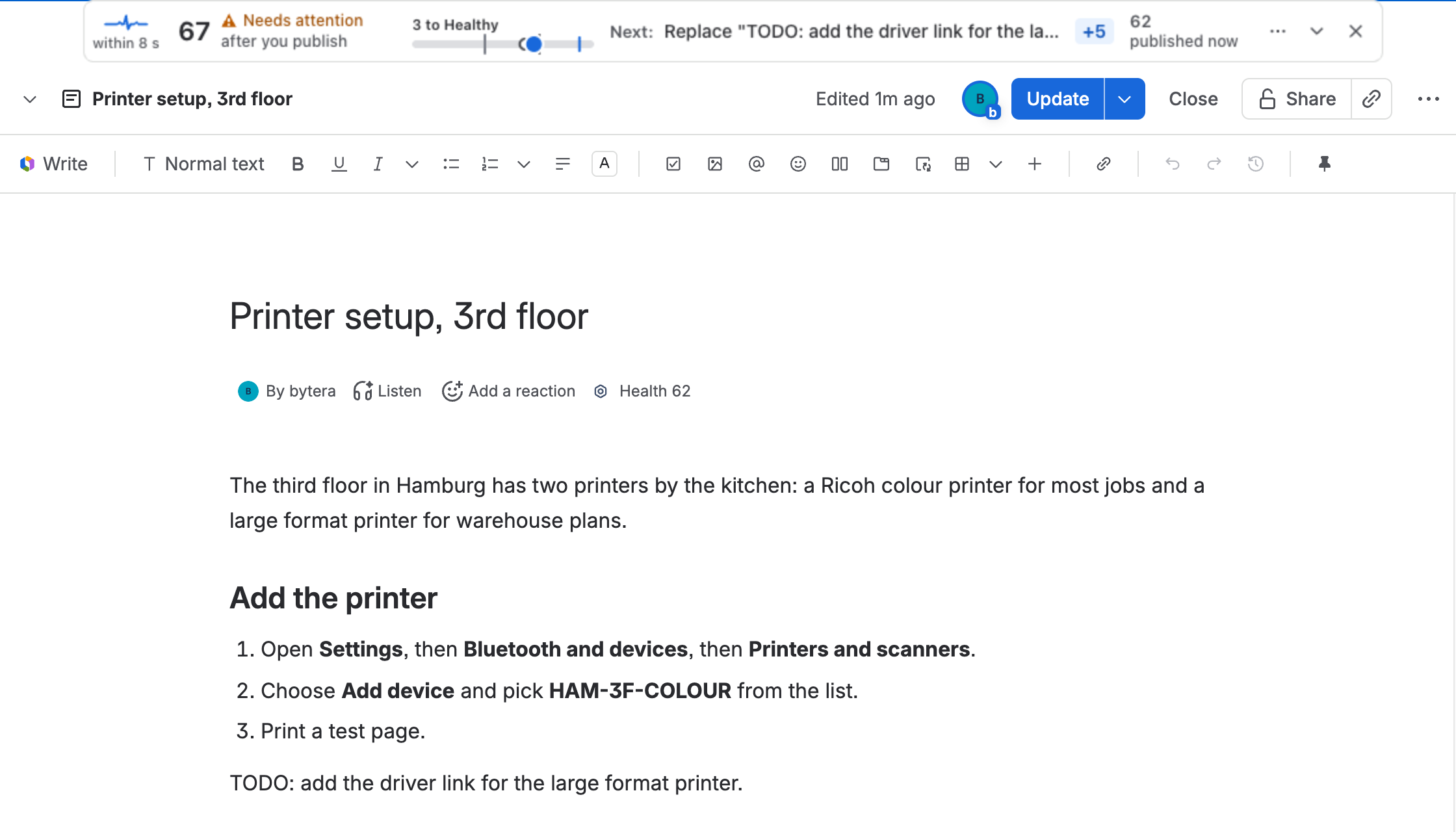
Make the change. A few seconds later the line confirms it and the points move into the score. You do not have to save anything for Pulse: it reads your draft as you work.
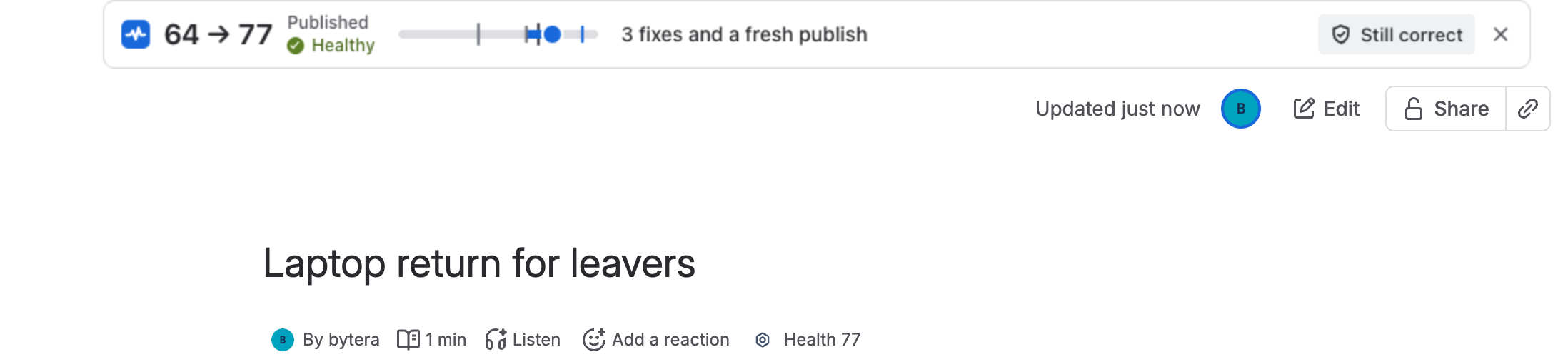
When you publish, the line becomes a short receipt: where the page was, where it is now, and what changed.
More in The coach in the editor.
3. Open Page vitals
Section titled “3. Open Page vitals”On any page, click Page Health under the title, or choose Fix with Pulse in the page menu
(alt+shift+f). Page vitals shows both scores, what each part is worth, the same steps the editor
shows, and the page’s review date.
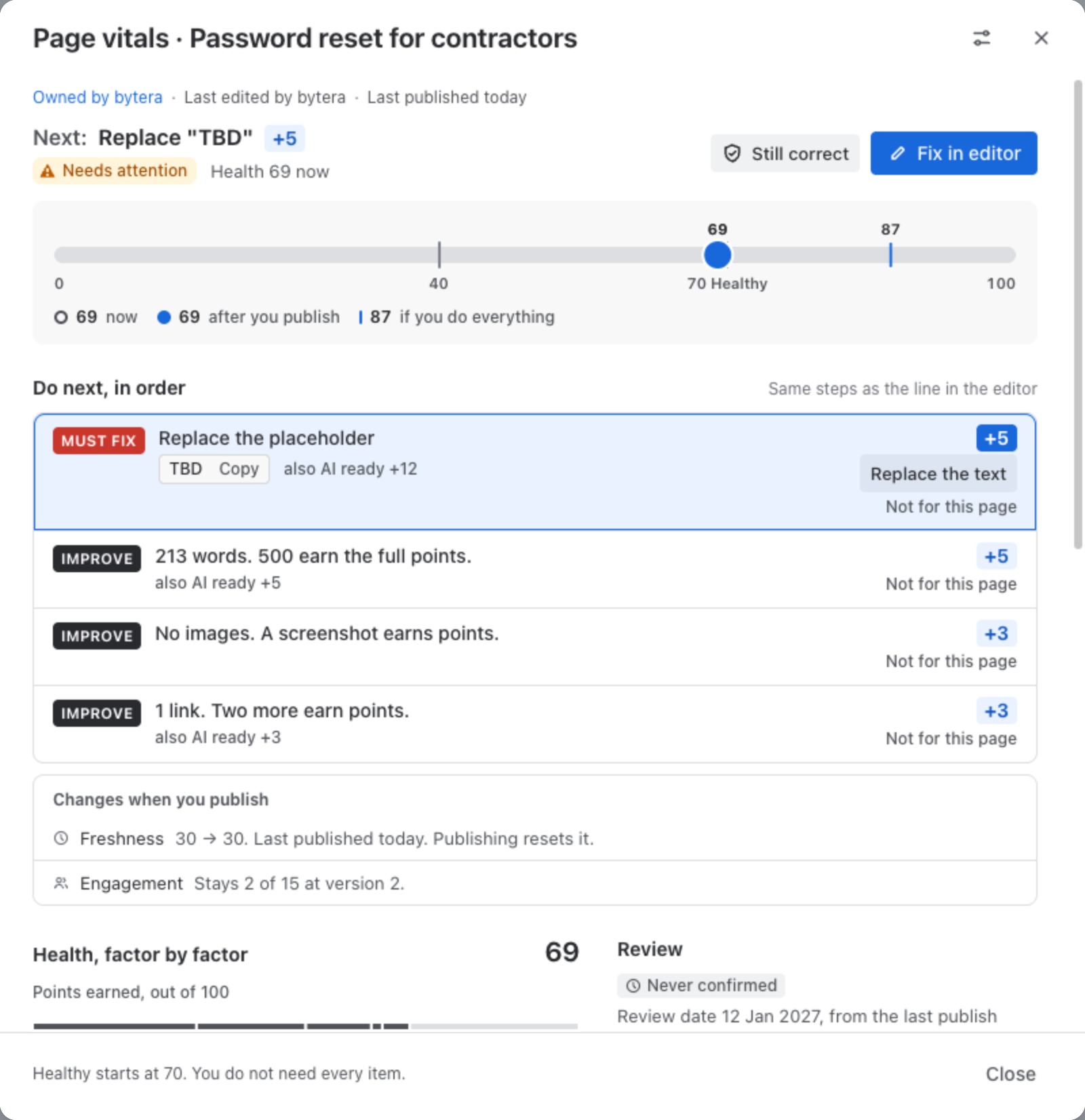
From here you can fix some things without opening the editor. See Page vitals and Changes Pulse can make.
4. Find the pages that need you
Section titled “4. Find the pages that need you”Open Apps → Pulse, or press alt+shift+p. For you lists the pages you own or edited last
that need you, each with one reason and one action: Fix, Still correct or Not now. The
same list sits in a section on Confluence Home. See For you and Home.
5. Look at a space
Section titled “5. Look at a space”In any space, choose Pulse space report in the sidebar. It ranks the space’s pages by the readers they reach and how far they are from Healthy, and says whether the space is ready for an AI agent. See Space report.
6. Optional: set your house rules
Section titled “6. Optional: set your house rules”Pulse scores pages with its default formula from the start. If your team has its own standard, a Confluence admin can switch the site to a content policy with seven rules and their weights, change who gets the coach, and set the review interval. See Settings and Content policies.
When Pulse reads your pages
Section titled “When Pulse reads your pages”| When | What happens |
|---|---|
| After the install | Pulse reads every space it can, by itself. |
| On every edit | Confluence tells Pulse about the change, and the page is scored again. |
| While you edit | The line checks your draft every few seconds, and more slowly once you stop typing. |
| Once a week | Pulse checks every page again, and reads how many people viewed each one. |
You never need to start a scan.
Stuck? See Troubleshooting & FAQ or email support@bytera.tech.