Settings
Pulse works without any setting. Three places let people change how it behaves:
| Where | Who | What |
|---|---|---|
| Pulse settings | Confluence admins | The site policy, coach defaults, the review interval, and the state of Pulse’s index. |
| Space settings → Pulse | Space admins | The space’s review interval, and on Advanced its own policy. |
| Your Pulse settings | Everyone | When you see the coach, and its flags. |
Everyone sees the results. Pulse checks each admin right with Confluence, as the person, when they save; a setting a person may not change is shown, not hidden, with who can change it.
Pulse settings
Section titled “Pulse settings”Confluence admins open Pulse settings from Open settings on Get started, or from Pulse in your site’s app management.
Scoring and policy
Section titled “Scoring and policy”Choose how the site scores pages: Pulse’s default formula, or a content policy with seven rules, their targets and weights. See Content policies.
Coach defaults
Section titled “Coach defaults”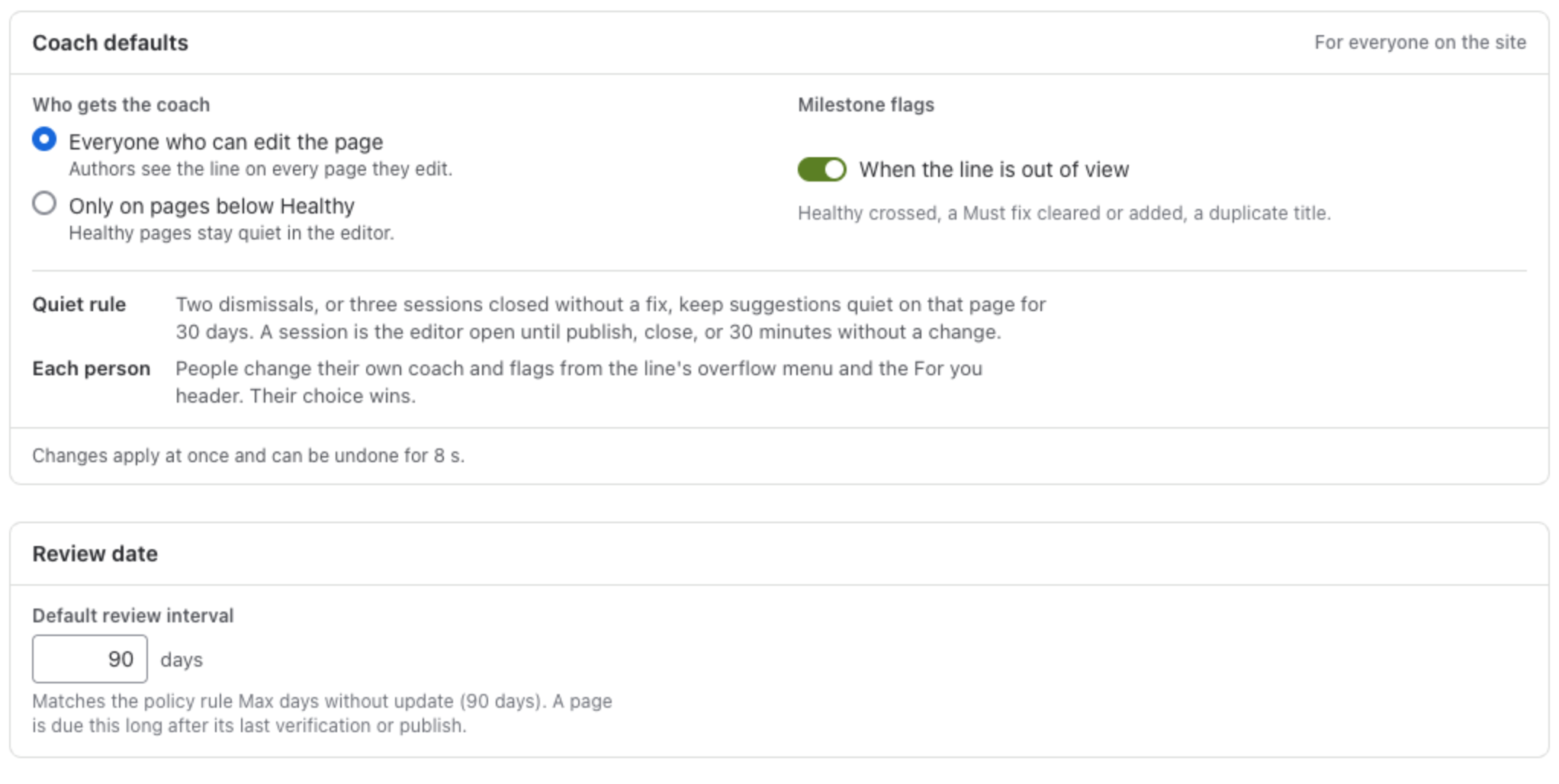
- Who gets the coach: Everyone who can edit the page, or Only on pages below Healthy, so that Healthy pages stay quiet in the editor.
- Milestone flags: a small flag when the line is out of view and something changes: the page crosses Healthy, a Must fix is cleared or added, or a duplicate title appears.
- The quiet rule: two dismissals, or three sessions closed without a fix, keep suggestions quiet on that page for 30 days. A session is the editor open until publish, close, or 30 minutes without a change.
- Each person changes their own coach and flags, and their choice wins.
Changes apply at once and can be undone for 8 seconds.
Review date
Section titled “Review date”The default review interval, 90 days unless you change it. A page is due this long after its last verification or publish. It matches the policy rule Max days without update when the site uses a content policy.
Spaces
Section titled “Spaces”Every space with the policy it uses and its review interval, and a link to its settings. Space admins change these in each space’s settings.
Index status
Section titled “Index status”Whether Pulse has read your whole site, how many pages it holds, when its next weekly check runs, the edition, and whether the changes Pulse can make are approved. Each space has a Refresh, which reads that space again.

When the changes still wait for approval, it says so: Changes to pages: waiting for approval. Approve Pulse’s new permissions in Atlassian Administration, under Connected apps.
Space settings
Section titled “Space settings”Space admins find Pulse in the space’s settings, under Integrations. The space report’s Space policy button leads there too.
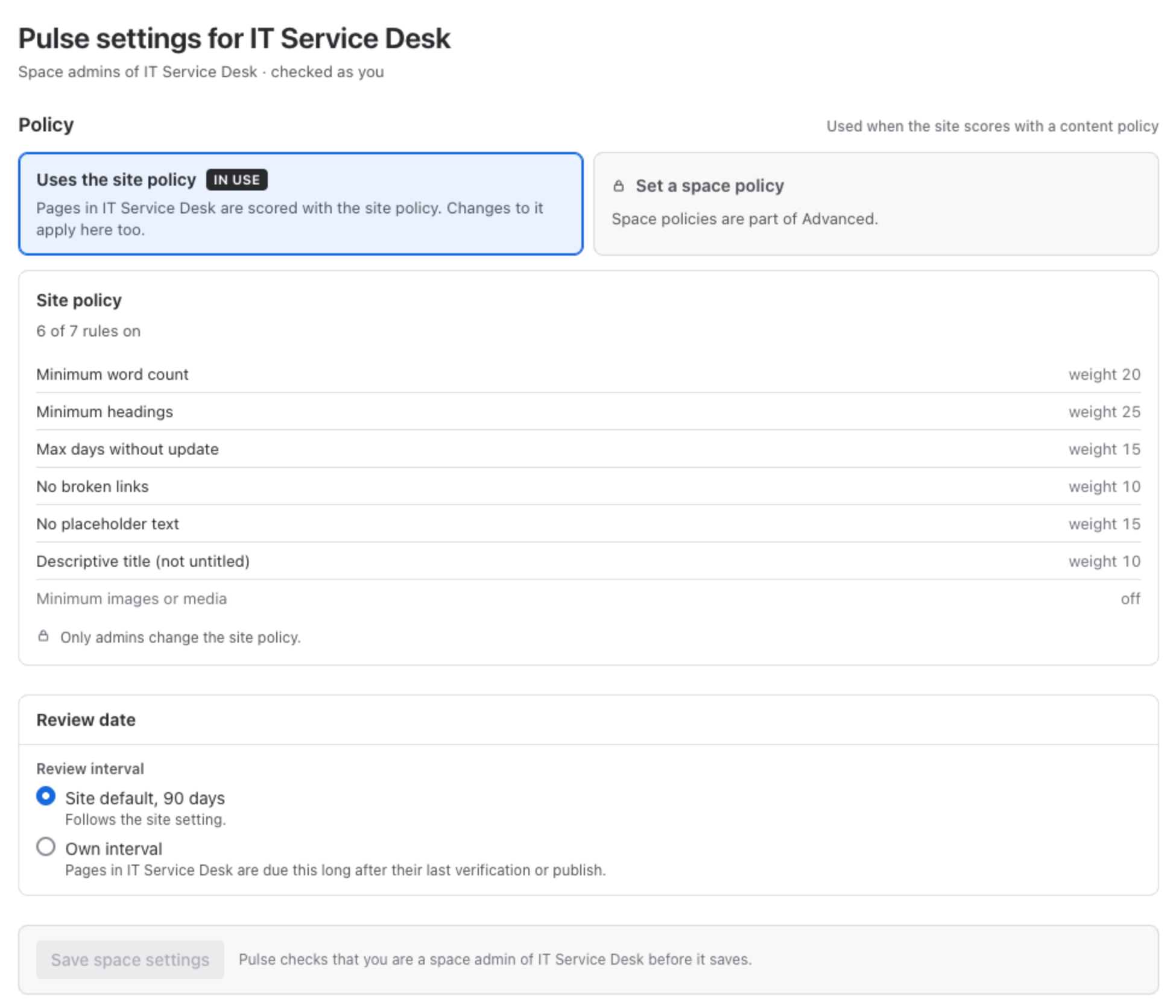
- Policy: use the site policy, or on Advanced set a policy for this space only.
- Review date: follow the site default, or give the space its own interval, for a space whose pages go stale faster or slower than the rest.
Your own setting
Section titled “Your own setting”Everyone chooses when they see the coach: always, only on pages below Healthy, or off. The setting is in three places, so it can always be turned back on: the menu of the line in the editor, the settings icon of Page vitals, and the header of For you. It is saved for you only.
What is stored where
Section titled “What is stored where”Settings live in your site’s own Forge database, inside Atlassian. See the security page.