Bulk Export
Exporting pages one at a time and stitching them together is somebody’s afternoon. XPress takes a whole branch - or a whole space - and gives you one document, in the order the tree is in, with a cover and a table of contents if you want them.
Choosing what goes in
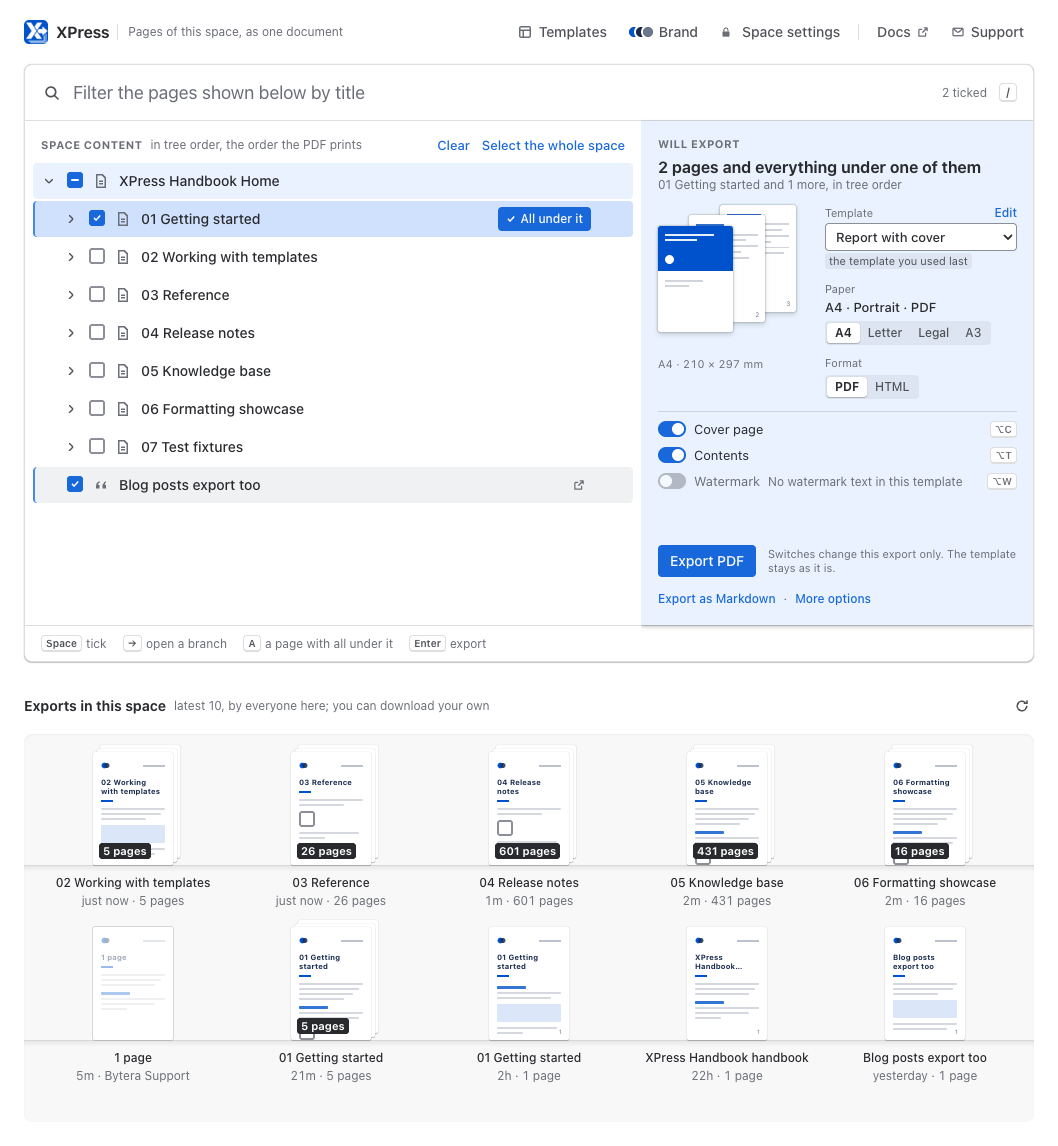
Section titled “Choosing what goes in”Open XPress from the space sidebar. The space’s pages are there as a tree, in the order your document will print them, with Will export beside it.
- Tick a page to include just that page.
- All under it, beside any page with pages below it, takes that page and its whole branch, without opening the branch first.
- Select the whole space takes every page in one click.
Will export says what you have chosen as you go, for example 2 pages and everything under one of them, so you see the shape of the export before you run it. Clear empties the selection. To drop one page, untick it in the tree, even inside a branch you took whole: only that page leaves, and the rest of the branch stays; tick it back and the branch is whole again. Turning All under it off takes out everything under the page and keeps the page. What you see ticked is exactly what goes in.
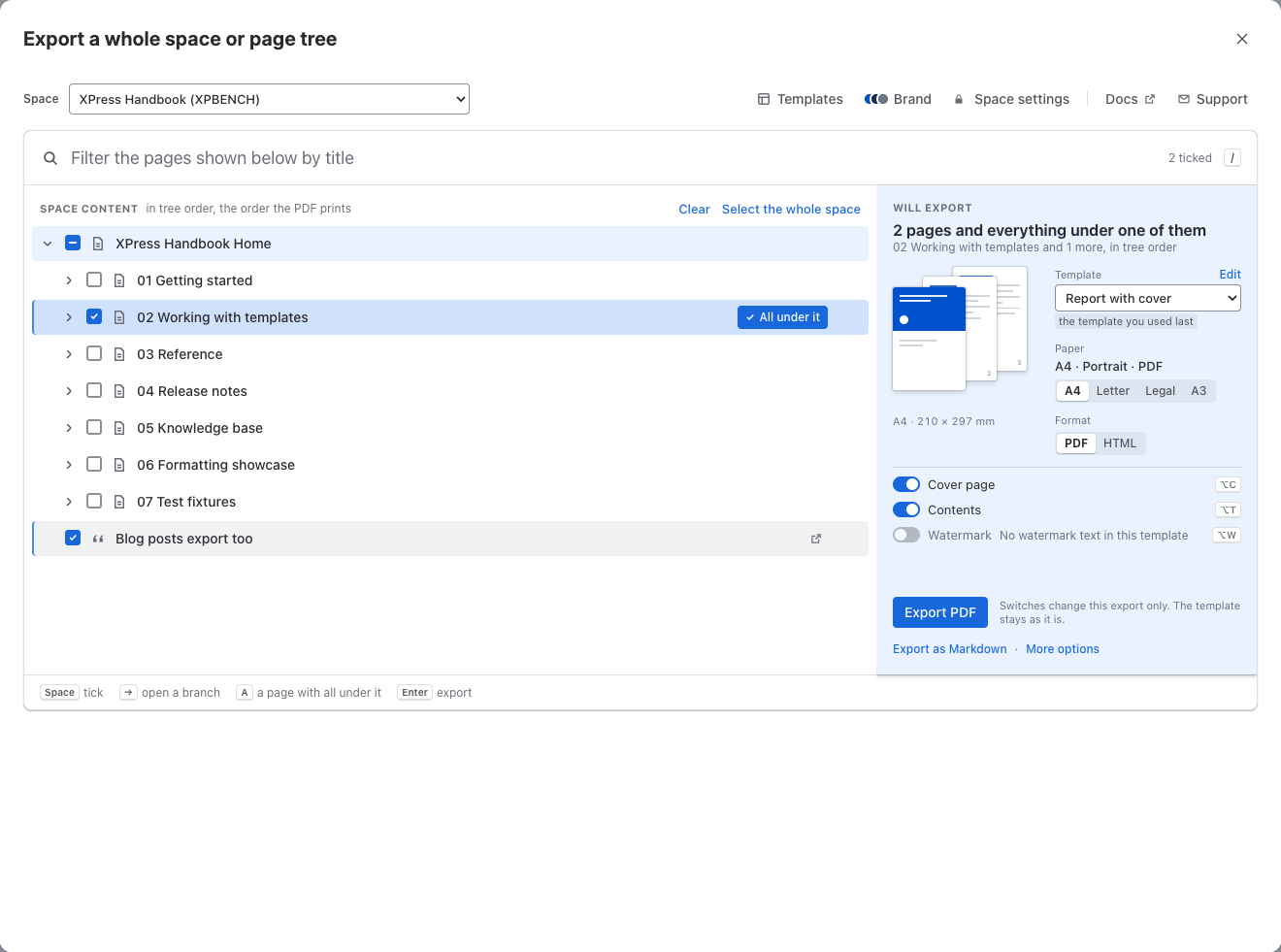
Already on the XPress page under Apps? Press Export whole space or tree at the top. The same page opens in a large window right over it, with a Space picker at the top: choose a space and its tree appears, ready to tick. XPress remembers the space you picked last, and closing the window puts you back exactly where you were, with the finished file waiting on your shelf.
What you get
Section titled “What you get”One file, not one per page. Pages follow the page tree - top to bottom, children under their parent - the same order you see in Confluence.
In PDF, every page starts on a fresh sheet, so the result reads as a document with sections rather than one continuous run.
Worth turning on for big exports
Section titled “Worth turning on for big exports”- A contents page - a linked table of contents listing every page in the export, in the same order. On a fifty-page document it is the difference between a reference and a pile.
- A cover page - title, subtitle and your logo, so the document introduces itself.
- Page numbers -
current / total, so people can talk about page 34.
All three live in your template, so you set them once. See Export Templates.
Permissions are checked per page, every time
Section titled “Permissions are checked per page, every time”Every page is re-checked against your access at the moment you export. Anything you cannot read is left out of the document rather than included. Selecting a whole space never becomes a way around a page restriction - yours or anyone else’s.
The same holds inside each page. XPress reads every page with your permissions, so when a page pulls in other content, through Include Page, Excerpt Include, Content by Label or a Page Properties Report, content from a page you cannot open stays out of the file.
The file is yours alone to download: it holds what your permissions let XPress read, so it is never handed to anyone else. A colleague who needs the same pages exports them again, with their own permissions.
It runs in the background
Section titled “It runs in the background”Start a bulk export and keep working - XPress gets on with it and shows progress as it goes. Finished exports wait for you on the space’s shelf, Exports in this space, and on your own shelf on the XPress page under Apps, so you do not have to sit and watch.
How big is too big
Section titled “How big is too big”A very large selection can be more than one PDF can hold. If you hit that, XPress tells you and suggests the fix: switch Format to HTML, which handles very large documents comfortably, or split the selection into a few smaller exports.
One export can only take on so much, and one account can only start so many in quick succession. Splitting a big selection into a few exports gets you documents people can actually navigate anyway.
- Export Templates - cover, contents and chrome.
- Export History - find a finished bulk export later.