Getting Started
This guide walks you through your first export with XPress.
Prerequisites
Section titled “Prerequisites”- XPress is installed on your site.
- You have at least one space with pages to export.
The quickest way: Apps → XPress
Section titled “The quickest way: Apps → XPress”Open Apps → XPress. The pages edited most recently are already listed, and the search box finds any other page by its title. Pick a page and the Will export panel shows what you are about to get: the template it will use, the paper, and whether it has a cover, a contents page and a watermark.
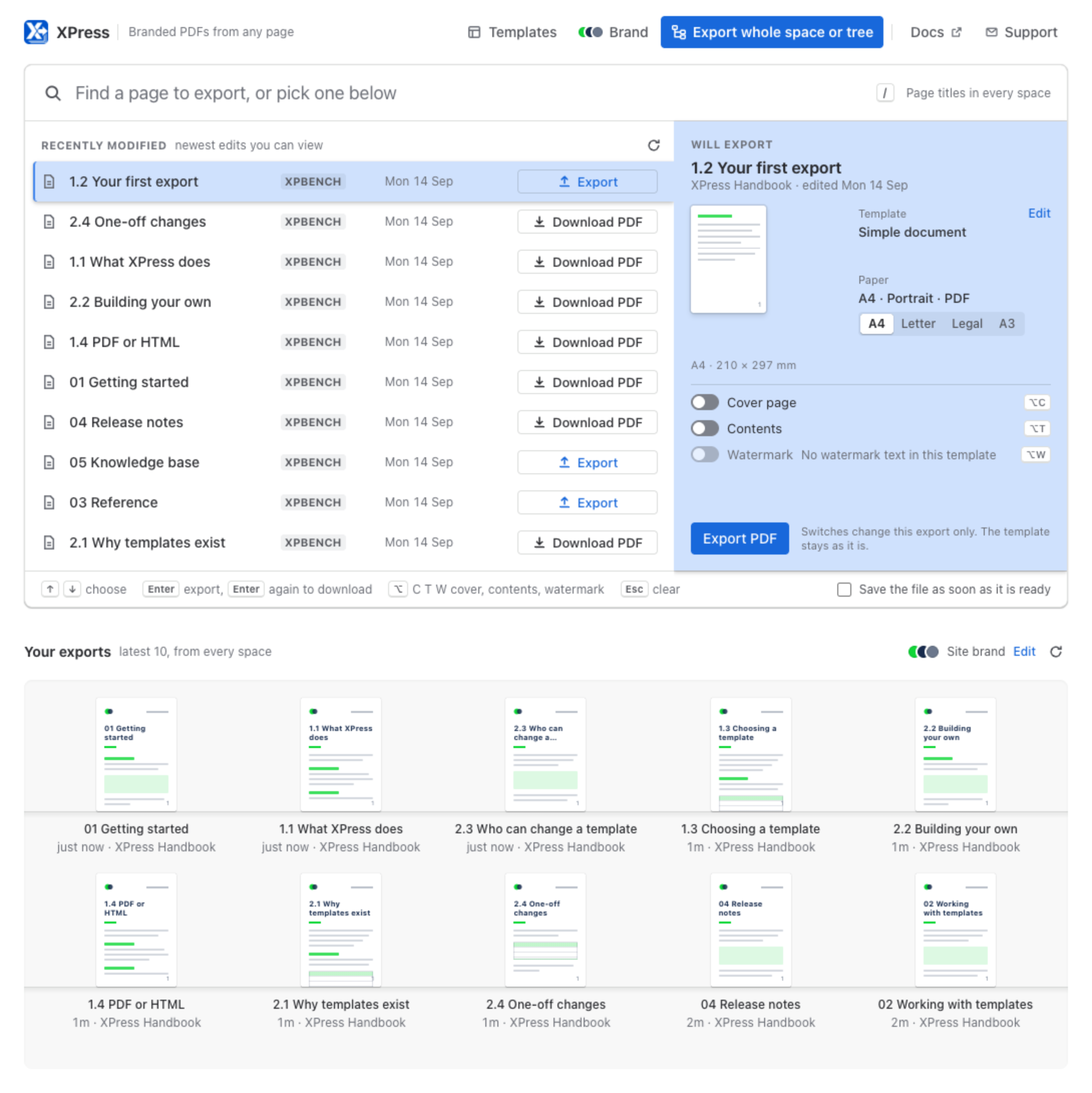
Press Enter, or Export PDF. The export runs right there in the page’s row, and when it is ready, Enter again downloads it. It comes out in the same template the page’s own Export (XPress) uses, so there is nothing to set up first. Every page also carries that Export (XPress), in the byline and in the ··· menu.
Your document also lands on the shelf below the list, Your exports, where it waits to be downloaded again. Until your first export, the shelf holds a faint proof of the page at the top of your list, ready to be printed.
The rest of this guide takes the fuller route, in a space, where you choose the pages, the template and every setting yourself.
1. Open XPress in a space
Section titled “1. Open XPress in a space”Open any Confluence space. In the left-hand sidebar, click XPress.
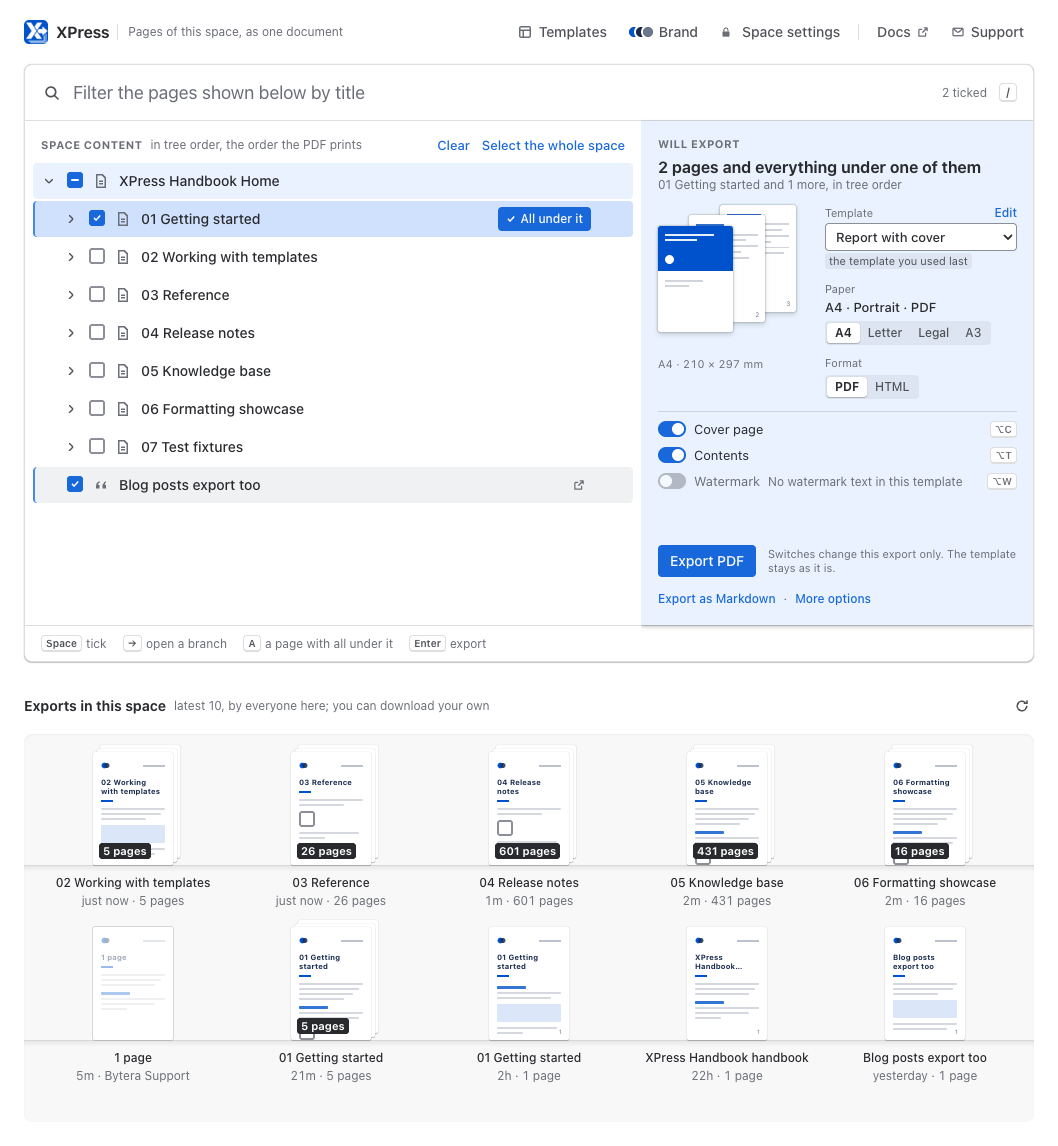
Everything you need is on one page: the space’s pages as a tree, Will export beside it saying exactly what you are about to get, and Exports in this space underneath, the latest documents made from this space.
2. Pick what to export
Section titled “2. Pick what to export”The tree lists the space’s pages in the order your document will print them. A space that hangs under one home page opens on that page’s children, so you see what the space holds straight away.
- Tick a page to include just that page.
- All under it, beside any page with pages below it, takes that page and its whole branch, without opening the branch first.
- Select the whole space takes every page at once, and Clear starts over.
The check box is always that one page, and All under it is always everything under it. Changed your mind about one page inside a branch? Untick it: only that page leaves, and the rest of the branch stays. Tick it back and the branch is whole again. Tick every page under a page one by one and its All under it turns on by itself. What you see ticked is exactly what goes in.
Will export sums up your choice as you go, for example 2 pages and everything under one of them, so you know the shape of the document before you make it. Type in the box at the top to narrow the pages shown by title, and use the ↗ beside a page to open it in Confluence in a new tab.
The keyboard does all of it: the arrow keys move and → opens a branch, Space ticks, A takes a branch whole, O opens the page and Enter exports.
3. Choose a template
Section titled “3. Choose a template”A template decides what your document looks like: the cover, the header, the margins, the watermark. Pick one from the Template list in Will export. That is the whole step; you do not have to configure anything.
You already have four to choose from:
- Simple document - clean A4 portrait, the everyday choice
- Report with cover - adds a title page and a linked contents page
- Confidential - a watermark on every page, plus a CONFIDENTIAL header and a Do not distribute footer
- Wide (landscape) - landscape with tight margins, for big tables
If your space has a default template, it is chosen for you and marked as the space’s default; when the space locks it, the list stays on it with a padlock, because every export there uses it. Otherwise you start on the template you used last, or on Simple document the first time.
4. Adjust this one export (optional)
Section titled “4. Adjust this one export (optional)”The things people change most are right in Will export: the paper (A4, Letter, Legal, A3, A5), the format (PDF or HTML), and switches for the cover page, the contents and the watermark. The small stack of sheets beside them redraws as you go. Alt+C, Alt+T and Alt+W (Option on a Mac) flip the switches from anywhere on the page.
Need more? More options opens every setting in a window over the page, with a page tree of its own: tick the pages there, choose Adjust for this export, change what you like and export from that window. Everything is there:
- Format - PDF (default), HTML or Markdown
- Paper Size - A4, Letter, Legal, A3, A5
- Orientation - Portrait or Landscape
- File Name - what the file is called when it lands; leave it empty and it takes the page’s title
- Cover Page - a title, subtitle, and your logo as the first page
- Table of Contents - a linked contents page listing every exported page
- Header Text / Footer Text - your words on the left, in the centre and on the right, at the top or bottom of every page (PDF only)
- Page Numbers - on or off, at the top or bottom, as 1, i or I (PDF only)
- Margins - Top / Right / Bottom / Left in millimetres, each adjustable on its own
- Watermark - diagonal text such as DRAFT, with position, opacity, rotation and size

Whatever you change applies to this export only: the template itself is left alone. A setting the template or the space locks shows its value with a padlock beside it and stays as it is.
Every export starts from its template, so nobody inherits a colleague’s one-off change. What you adjust is not remembered after the export. If a configuration should stick, save it as a template.
5. Export
Section titled “5. Export”With at least one page ticked, press Export PDF in Will export, or Enter in the tree.
The button gives way to a progress bar while XPress works. A few pages take seconds; a large bulk export with lots of images takes longer, and it runs in the background, so you can leave the page and come back.
When it is ready, Download PDF hands you the file, and Export again starts over with your pages still ticked. The document also lands on the shelf below, ready to download again.
6. Find an older export
Section titled “6. Find an older export”Exports in this space, under the tree, shows the latest ten documents made from this space, by everyone. Yours carry their title and download with a click; a colleague’s show when they made it and who they are, and the file stays theirs, because it holds what their permissions let XPress read.
The longer list, the space’s last 20 exports with their status, is in the Exports tab under More options. Your own latest exports from every space also wait on the shelf of the XPress page under Apps - see Export History.
What to do next
Section titled “What to do next”- Build your team’s own export template so every document matches - Export Templates.
- See how bulk export handles whole spaces - Bulk Export.
- Put your logo, the page title and page numbers in the header and footer - Headers & Footers.
- Set non-standard paper size and margins - Page Layout.
Stuck? See Troubleshooting & FAQ or email support@bytera.tech.