Export History
Nobody wants to rebuild a fifty-page export because they closed the tab. Every export made in a space is kept, and yours are ready to download again.
Where to find it
Section titled “Where to find it”Open XPress in a space: Exports in this space, under the page tree, shows the latest ten documents made from this space, by everyone. Each is drawn as a sheet of paper in your site’s colours. Yours carry their title and download with a click; a colleague’s say when they made it and who they are.
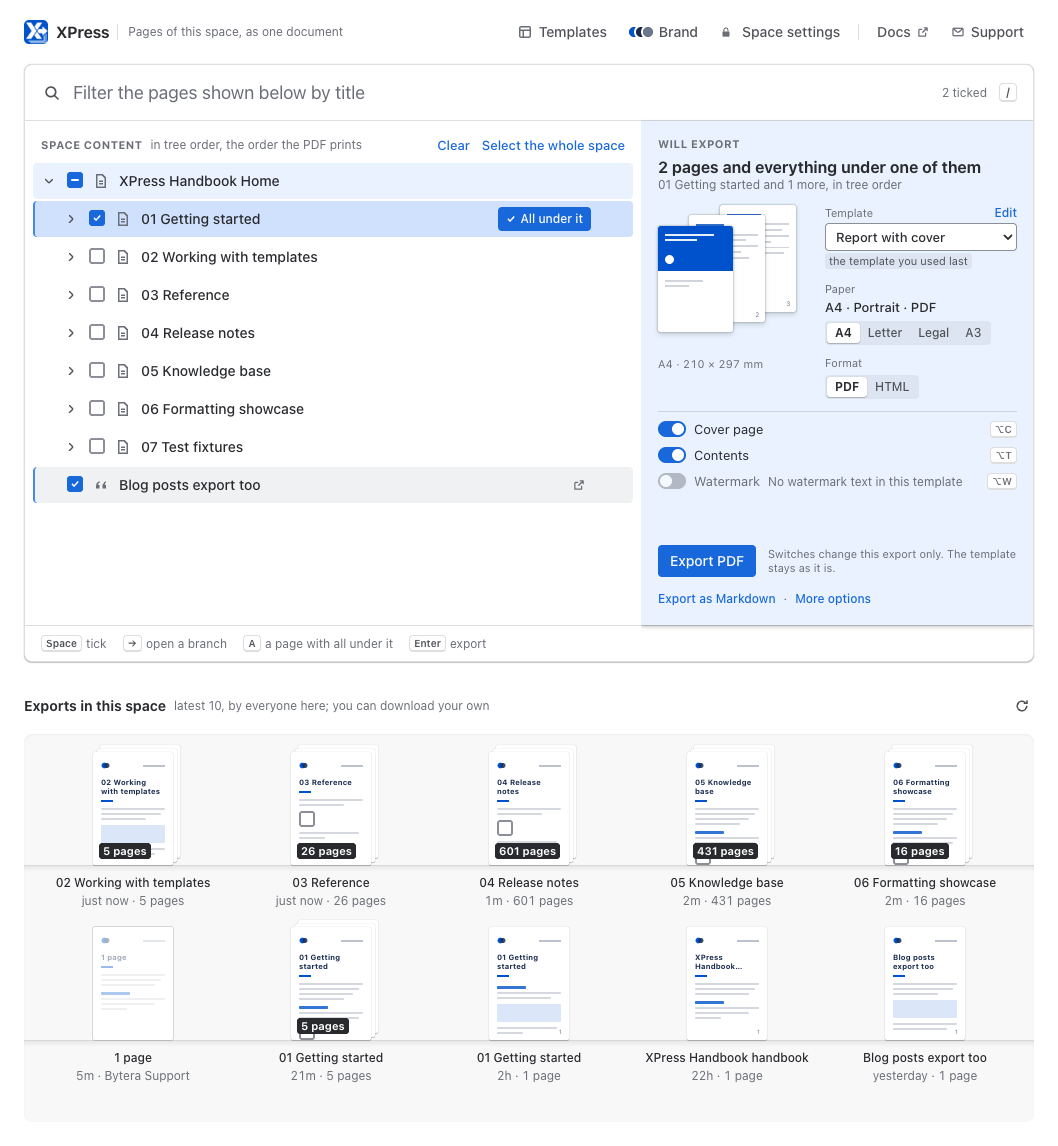
An export still running shows how far it has got, and lands on the shelf when it is done. The refresh button beside the heading reads the list again.
Your own exports, from every space
Section titled “Your own exports, from every space”Made documents in three different spaces this week? Open Apps → XPress and your ten latest exports are waiting on the shelf below the page list, Your exports, with no need to remember which space each one came from. Each is drawn as a sheet of paper in your site’s colours, with its title, when you made it and where it came from, so the shelf already looks like the documents on it.
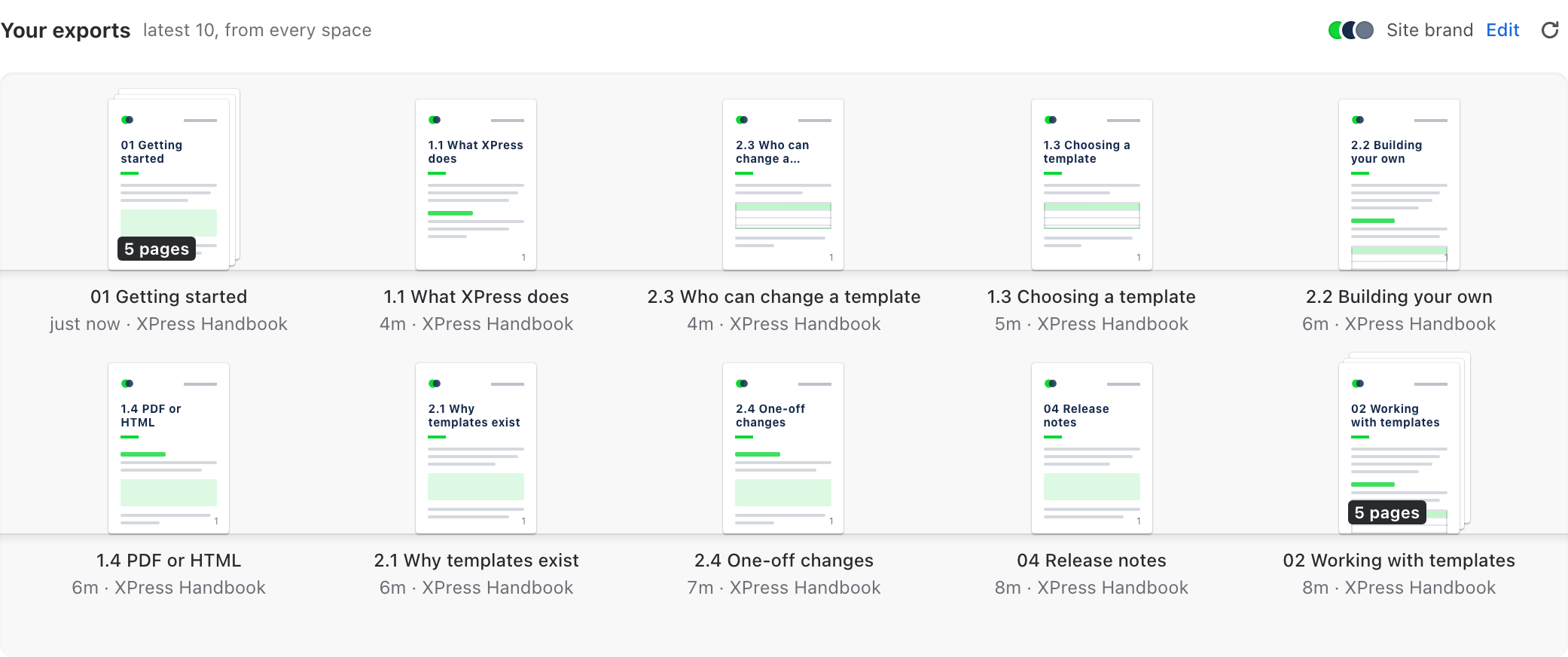
Click a sheet to download it. The shelf looks after the ones that did not go to plan, too:
- An export that failed offers Retry.
- A page too large for a PDF offers Try HTML, the same content as a web document.
- A failed export of a whole space or page tree takes you to the space export, to run it again.
- A page edited since you exported it is flagged whenever it is in your Recently modified list or your search results: its sheet reads Page edited since, and its row offers Update PDF.
- An export still running shows how far it has got, and lands on the shelf when it is done - leave the page and come back, and it is still there.
That shelf is yours alone: it shows only exports you ran yourself, from spaces you can still open. A colleague’s exports stay on the shelf of the space they came from.
The sheets are drawn in your brand’s colours rather than photographed from your pages, so they tell you what each export is at a glance, not what is on its first page.
The Exports tab
Section titled “The Exports tab”For the longer list, choose More options in a space and open the Exports tab: the space’s last 20 exports, one row each.

| Column | |
|---|---|
| Date | When the export was started |
| Created By | Who ran it |
| Pages | How many pages went in |
| Status | Where it got to - see below |
| A Download button on your own exports, once the file is ready |
Reading the status
Section titled “Reading the status”| Badge | What it means |
|---|---|
| DONE (green) | Finished. On your own export, the Download button is ready for you. |
| QUEUED (grey) | Accepted and waiting to start. |
| PROCESSING (blue) | Running now. |
| ERROR (red) | It did not finish. |
If a row shows ERROR, Troubleshooting covers what each failure means and what to do about it. If you cannot tell which applies, email support@bytera.tech with the space and roughly how many pages.
How long exports are kept
Section titled “How long exports are kept”30 days. After that the file is deleted automatically and the row leaves the list.
The lists themselves are short on purpose: a space’s shelf shows its 10 latest exports and its Exports tab the 20 most recent, and the shelf on the XPress page under Apps your own 10 latest. On a busy space an older export can scroll out of view before its 30 days are up.
That is deliberate. XPress is built for active work, not as an archive - if a document matters long term, download it and keep it where your other documents live.
Each space keeps its own list
Section titled “Each space keeps its own list”Switch spaces and the shelf shows that space’s exports. Your work in one space does not clutter another - the only view across spaces is your own, on the shelf of the XPress page under Apps.
Who can download what
Section titled “Who can download what”The space’s exports are visible to anyone who can open XPress in the space, so colleagues can see that an export happened, when, and who ran it.
Each file is yours alone to download. XPress reads every page of an export with the permissions of the person who runs it, including anything a page brings in from elsewhere, so the file holds what that person may see. A colleague sees the export without its title or a download (in the Exports tab: Only its creator can download it), and exports the same pages again to get them with their own permissions. One of your own exports made before files were read with your permissions shows Export again to download: export the pages once more for a copy you can download.
- One-Click Export - back to the main workflow.
- Troubleshooting - what to do when an export does not finish.