One-Click Export
The fastest export in XPress is the one you never open XPress for. From any Confluence page you can produce a finished document in a single click, and it comes out in your house style: the space’s default template when it has one, otherwise a template labelled for pages like it, otherwise the template you last picked and exported with, and otherwise the clean Simple document starter.
Two ways from the page itself
Section titled “Two ways from the page itself”The byline. Under the page title, next to the author and date, there is an Export (XPress) entry. Click it and a small window opens on a single sheet of paper. If you already have a PDF of the page that is newer than its last edit, XPress hands you that one: Download PDF, and nothing is made twice. Otherwise the export starts right away, with nothing to choose and nothing to confirm, and the sheet prints as it goes. When it is ready, the same button downloads it.
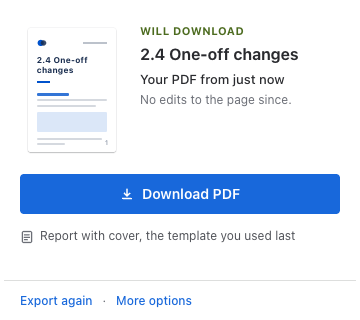
The window always names the template the page comes out in, and why: the space’s default template, the page’s label, or the template you used last. When the space locks its template, it says locked in this space, and when none of these applies, it names Simple document. Want a fresh copy anyway? Export again. Edited the page since your last PDF? The window says so, starts the new one at once, and keeps the old one a click away while you wait.
The ··· menu. Open the page’s ··· menu and choose Export (XPress). The Will export panel from the XPress page opens for this page: the template and why it applies, the paper, and switches for the cover page, contents and watermark. One button always does the next thing: Export PDF, then its progress, then Download PDF. More options in the byline window opens the same panel.
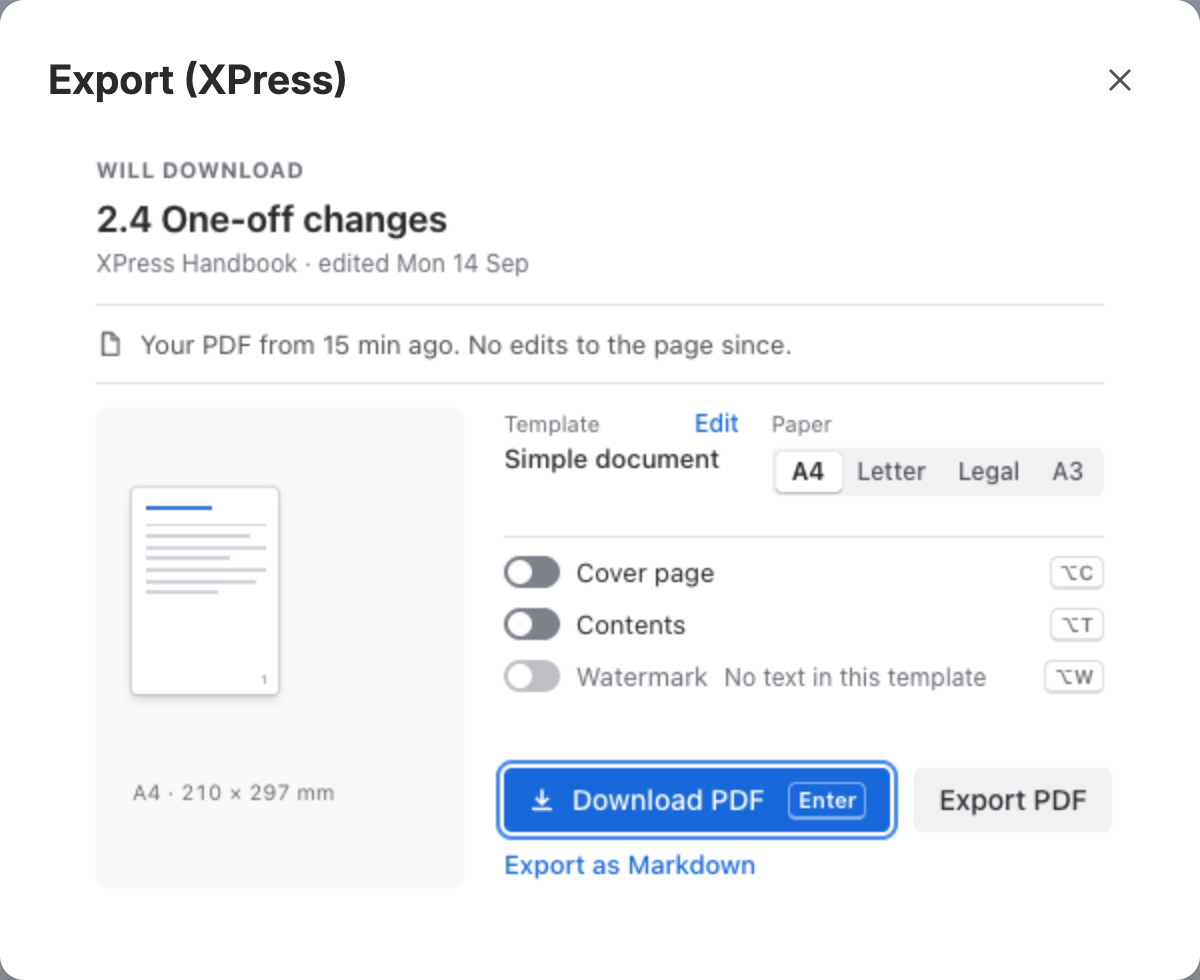
A line under the page title says what you already have of it, so you can take the PDF you made before or make a fresh one with your changes. The switches change this export only; the template stays as it is. From the keyboard, Enter presses the button, Alt+C, Alt+T and Alt+W (Option on a Mac) flip the switches that are not locked, and Esc closes the window.
Both pick the template the same way: the space’s default, else the page’s labelled template, else the template you last picked and exported with, else Simple document. So whoever exports a page from that space gets the same cover, header, footer and watermark as everyone else. A one-off change someone made for their own export never carries over to yours. Setting that default is how you make a whole space consistent without asking anyone to learn the settings - see Export Templates.
From the XPress page
Section titled “From the XPress page”Know the page but not where it lives? Open Apps → XPress and type its title, or pick it from Recently modified, the newest edits from every space you can view. Click a page, or move to it with the arrow keys, and the Will export panel shows what you are about to get: the page, the space it lives in, the template it will come out in, and a small stack of sheets drawn at the paper it will print on.
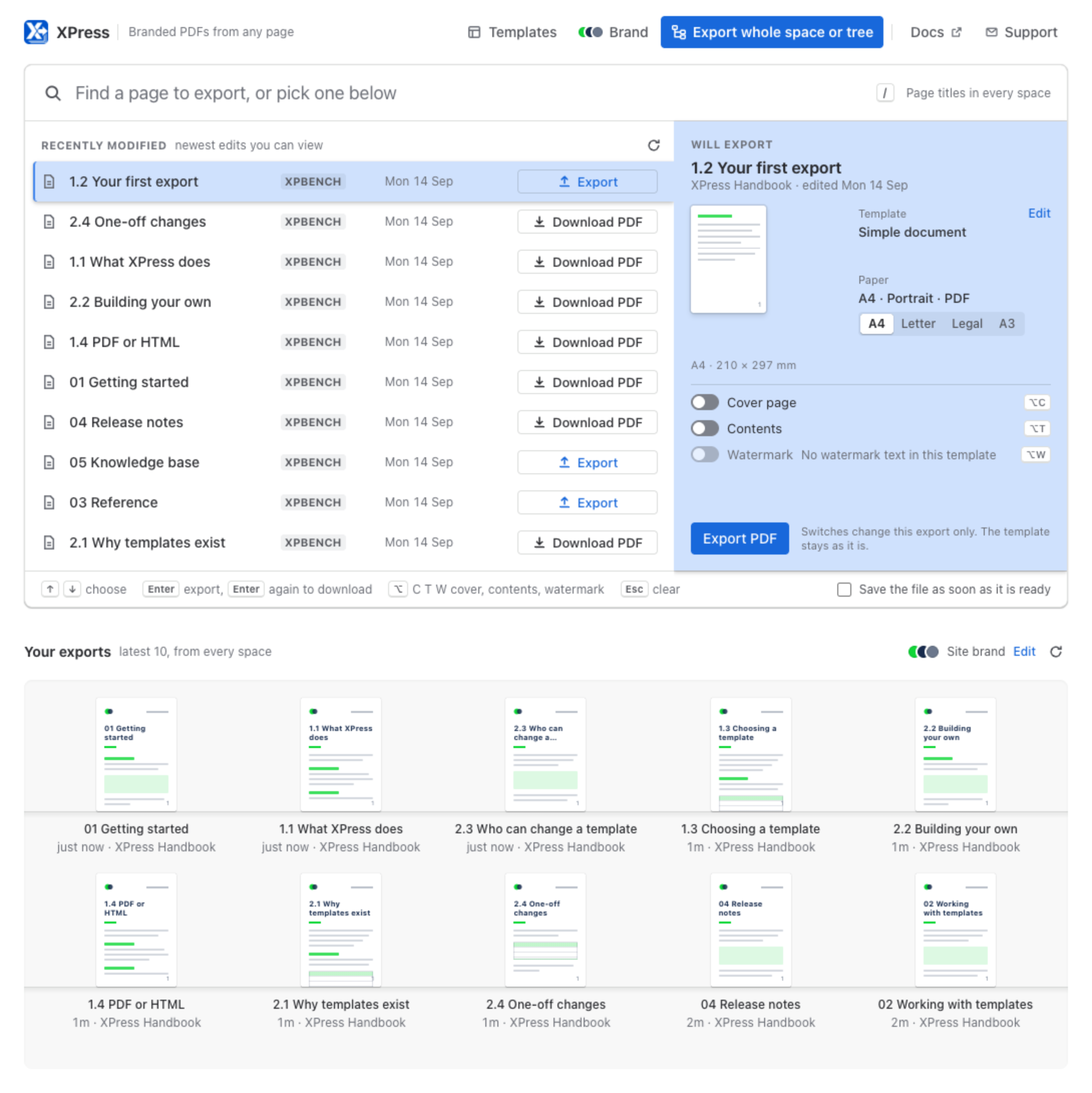
Press Enter and the export runs inside the page’s row, so you watch it happen right where you are. The moment the document is ready, press Enter again to download it. Typing fast is fine: press Enter straight after the title and XPress waits for the search, then exports the first page it finds, never whatever was on screen while you typed. Prefer the mouse? Export PDF in the panel starts it too, and so does the button on the row itself, which turns into Download PDF in the same spot. Nothing opens and nothing needs closing, and you can start on the next page while the first is still on its way.
Rather not come back for it at all? Tick Save the file as soon as it is ready at the bottom of the search panel, and a document you start there downloads itself the moment it is done. One that takes long enough to land on the shelf waits for you there instead, a single click from your downloads. XPress remembers the choice in your browser.
Every document you make there also lands on the shelf below, Your exports - see Export History.
A page you saved moments ago usually turns up in search straight away. If it has not yet, the search says so and lists Recently modified right beneath, where you will find it.
Pages you have exported before
Section titled “Pages you have exported before”When one of your recent exports is a PDF of just that page, the page’s row knows it. While your copy is newer than the page, the row offers Download PDF, and Enter gets you the PDF you already have without making it again. Once someone edits the page, it offers Update PDF instead, so an old copy never passes for the current one. The same goes for your own choices: switch on a watermark or change the paper, and the row offers Update PDF, so Enter makes a PDF with them rather than handing you one without. And it goes for the template: a PDF is offered as current only while it was made with the template the page exports with now. Once the space gets a new default, you start using a different template of your own, or the template’s settings are changed, the next export makes a fresh one, on the XPress page and on the page itself. Renaming a template changes nothing: your PDF stays current.
The Will export panel always says what Enter is about to do - export, download or try again - so a key press never surprises you. Whatever it does, it does with the choices the panel shows, a second try included.
Adjust one export
Section titled “Adjust one export”The Will export panel tells you which template the page will use and why: the space’s default template, the page’s label, or Simple document when neither applies. It also lets you change four things for this one export, as long as no lock holds them:
- Paper size - A4, Letter, Legal, A3 or A5
- Cover page - on or off
- Contents - a linked contents page, on or off
- Watermark - on or off, with the template’s own text
The stack of sheets follows along as you go, gaining a cover or a contents page, taking the watermark across it and changing shape with the paper, so you see the shape of the document before you make it. Your choices belong to that page alone and go out with its export (as Export HTML, when the template makes web documents); the template stays exactly as it is. To change the template itself, Edit opens the template designer.
A watermark needs words to print, so a template without watermark text has nothing to switch on, and the panel says so. Give the template its text in the designer and the switch is ready for you.
In a space that requires a watermark, the switch stays on and says Required in this space: every document from that space carries it. See A default template per space.
When the template locks the paper, the cover page, the contents or the watermark, that one shows a padlock, says Locked in this template and stays as the template sets it. In a space that locks its template, it says Locked in this space. See Lock what every document must keep.
From the keyboard
Section titled “From the keyboard”Everything here works without the mouse. / takes you to the search box from anywhere on the page, ↑ and ↓ choose a page, Enter exports it and Enter again downloads it. Alt+C, Alt+T and Alt+W (Option on a Mac) switch the cover page, contents and watermark without leaving the search box, and Esc clears the search.
With a screen reader, each page is read out with what Enter will do to it, and you hear how many pages a search found (or that it found none), when an export starts, when it is ready and if it does not finish. A shortcut that cannot change anything - the template is still loading, say, or a lock holds the switch - tells you so instead of staying silent.
When you want to choose more
Section titled “When you want to choose more”The byline keeps to one click, and the ··· menu and the XPress page keep to the four choices that matter most for a single page. To pick a different template, switch format, rename the file or set the margins, open XPress from the space sidebar instead: there you get the page tree, the template list, and More options for every setting.
What comes through
Section titled “What comes through”Exports carry Confluence’s own styling, so the document looks like the page it came from:
- Headings, paragraphs, lists and tables. A long table repeats its header row on every page, and a wide one fits the paper with the column proportions you set.
- Code blocks, in a fixed-width font, with long lines wrapped instead of cut off
- Links. A link to another page in the same document takes you to that page in the file; any other link opens in Confluence.
- Panels - info, note, warning, success
- Status lozenges, in their colours
- Layout columns
- Emoji
- Diagrams drawn with draw.io on the page, as they look there
- Formulas from LaTeX Math, sharp at any zoom, with their equation numbers
- PNG, JPEG, SVG, GIF and WebP images attached to the page. A screenshot taller than a page is scaled to fit on one.
Two things do not come through, both worth knowing before you rely on them:
- Other image formats. BMP, TIFF and the like are not embedded and will be missing. Save them as PNG or JPEG.
- Macros that embed an external website. They come out empty; the rest of the page is fine.
Blog posts too
Section titled “Blog posts too”Blog posts export exactly like pages, from the same entry points.
If it doesn’t finish
Section titled “If it doesn’t finish”XPress runs the export in the background and tells you what happened as it goes. The most common messages, and what to do:
| Message | What it means |
|---|---|
| This export is too large to render as a PDF | Switch Format to HTML, or export fewer pages |
| No exportable page content was found | The selection was a folder or whiteboard, with no page in it |
| Some of the selected content could not be read | The page moved or its restrictions changed - refresh and retry |
| You have started a lot of exports recently | Wait a couple of minutes and run it again |
On the XPress page, the row says what went wrong and puts the fix beside it: Try HTML for a page too large for a PDF, Retry for anything else. The byline and ··· windows do the same on their one button: Export HTML for a page too large for a PDF, with Try PDF again beside it, and Try again for anything else. Your choices are kept either way.
Full list in Troubleshooting.
- Bulk Export - many pages, one document.
- Export Templates - set the style a space exports in.